

Microsoft Office 365 – now branded as Microsoft 365 – has become the go-to productivity suite for small businesses and managed service providers (MSPs) alike.
For organizations that need secure email, real-time collaboration, cloud storage and AI-powered productivity, Microsoft 365 offers a single subscription that bundle the familiar Office apps (Word, Excel, PowerPoint, OneNote and Outlook) with cloud services like Teams, OneDrive, SharePoint and Exchange. Because it is delivered as a service, Microsoft 365 is continually updated and scaled, allowing small businesses to access enterprise-grade features without large upfront costs.
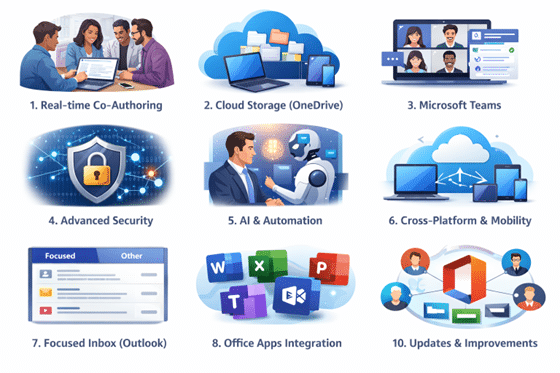
For MSPs and SMBs, the “top 10 features” worth highlighting aren’t just end-user conveniences (chat, email, file sharing). The real differentiator – especially for service providers – comes from how the platform connects identity, endpoints, email security, information protection, and compliance controls into a manageable, repeatable operating model. Hence, we prioritizes a mixed set of daily-use capabilities and high-leverage admin/security features where licensing changes the story. Microsoft explicitly positions these plans as a stepped ladder –
- Business Basic offers web/mobile apps plus email and storage
- Business Standard adds desktop apps
- Business Premium adds advanced security and device management.
The 10 feature listed below were selected because these
- Show-up in almost every real-world deployment
- Carry clear business value
- Create either measurable productivity gains or measurable risk reduction
Where relevant, each section includes MSP delivery use cases, practical admin/migration tips, security and privacy implications, and plan-dependent licensing notes.
1. OneDrive Cloud Storage & File Sharing

What it is
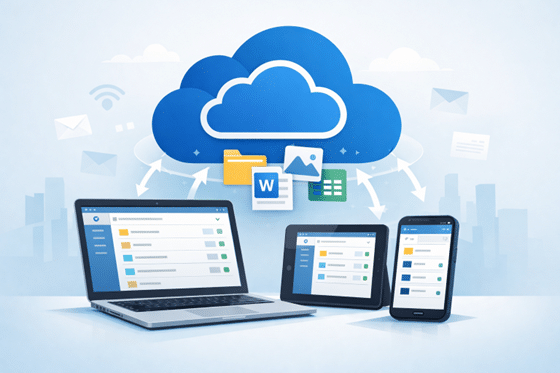
OneDrive is Microsoft’s cloud storage platform that comes with every Microsoft 365 subscription. It acts as a single repository for all your files, photos and documents, storing them securely in Microsoft’s data centers. OneDrive is deeply integrated with the Office apps and Windows File Explorer, making it easy to open, edit and save files without thinking about where they are stored.
How it works and why it matters
When you save a file to OneDrive, the service automatically synchronises it across all your devices. According to Microsoft’s support documentation, OneDrive can store more than 300 types of files and they remain secure and accessible across the web, mobile apps, Macs and PCs. This means you can start editing a proposal on your desktop, continue on your laptop during a client visit and finish on your phone while commuting, without having to email files back and forth.
One of the most powerful aspects of OneDrive is its integration with Office online. When you share a document, recipients can edit simultaneously using the Office web apps or their desktop applications, even if they do not have an Office subscription. Microsoft notes that you can edit and co-author with others on Office documents, whether they have Office or not. Shared documents can be protected with granular permissions: you decide whether others can view, comment or edit. Expiration dates and passwords can further control access, and version history allows you to recover previous versions if something goes wrong.
From an MSP perspective, OneDrive reduces the need for on-premises file server and VPN connections. It also simplifies backup: deleted files are retained in the recycle bin for at least 30 days, and administrators can restore entire accounts if necessary. For small businesses, OneDrive eliminates the friction of emailing large attachments or carrying USB drives; everything is in the cloud and accessible via a simple link.
Tips for getting more from OneDrive
- Use automatic backup: Enable the desktop, documents and pictures folder backup feature on Windows to automatically protect important files.
- Leverage offline access: Mark important files or folders as “Always keep on this device” so they remain available when you are offline; changes will sync later.
- Secure sharing: Always set expiration dates and avoid “anyone can edit” permissions when sharing sensitive documents with external partners.
2. Real-Time Co-Authoring & Collaboration


What it is
Real-time co-authoring allows multiple people to work on the same Word, Excel or PowerPoint file simultaneously. You no longer need to send attachments back and forth or manually merge changes; instead, everyone sees each other’s edits as they happen. This feature works in the desktop applications and the web versions, provided the file is stored on OneDrive or SharePoint.
How it works and why it matters
When someone shares a document with you, the email includes a link that opens the file in your browser or the desktop app. Microsoft’s support page explains that as soon as someone else is working on the document you will see their presence and the changes they are making – this is called co-authoring or real-time collaboration. Each person’s cursor is highlighted in a unique colour, and you can chat or leave comments directly in the document.
Real-time co-authoring speeds up teamwork by eliminating version confusion. For example, marketing staff can write copy while designers adjust layouts in the same PowerPoint deck, or sales and finance teams can update a proposal together. Co-authoring also improves transparency because you know exactly who made each change and when. If you need to work offline, the application will sync your changes later.
For small businesses, this feature is transformative: it allows distributed teams to work together as if they were in the same room. For MSPs supporting clients with remote workers, co-authoring reduces support tickets related to conflicting document versions.
Tips for getting more from co-authoring
- Store files in OneDrive or SharePoint: Real-time editing only works when the document lives in the cloud; local files cannot be co-authored.
- Use @mentions: Tag colleagues in Word or PowerPoint comments to draw their attention to specific passages.
- Turn on Track Changes when necessary: In Word you can still track edits during co-authoring to maintain a traditional editing workflow.
3. Microsoft Teams: Unified Communication & Collaboration

What it is
Microsoft Teams is the communication hub of Microsoft 365. It brings together chat, audio/video meetings, file sharing, collaborative whiteboards and integrations with other apps. Teams is designed to replace a patchwork of tools (email, instant messaging, conferencing and file storage) with a single platform.
How it works and why it matters
Teams organizes workspaces into channels for projects, departments or topics. Each channel includes a persistent chat thread where messages remain searchable and available to all members. You can share files directly in the chat, co-edit them within Teams and schedule meetings without leaving the app. Voice and video calls include screen sharing, background blur and transcriptions; meetings can be recorded and stored in OneDrive or SharePoint for later reference. Integration with the Microsoft 365 calendar means you can join a meeting with one click.
Teams also supports apps and bots. You can add tabs for Planner, OneNote, SharePoint lists or third-party services like Trello or Adobe Sign. Power Automate connectors allow you to automate tasks, such as posting a message when a new file is uploaded. For MSPs, Teams provides a central place to communicate with clients; channels can be configured for each customer so everyone stays informed. For small businesses, Teams replaces separate chat and conferencing subscriptions, reducing costs and simplifying user management.
Tips for getting more from Teams
- Use keyboard shortcuts: Typing /call or /chat in the command box lets you start calls or chats quickly.
- Pin important channels: Keep critical projects at the top of your channel list so you never miss updates.
- Configure guest access: Invite external partners securely without giving them access to your entire tenant.
4. Cross-Platform Mobility & Offline Access


What it is
One of Microsoft 365’s most important advantages is that it works seamlessly across devices and operating systems. Whether you use Windows, macOS, iOS or Android, you can access your documents, emails and meetings. The Office mobile apps are feature-rich, allowing you to edit documents, join Teams calls or scan receipts with your phone camera.
How it works and why it matters
When you sign in with your Microsoft account, your settings and recent documents sync automatically. You can start drafting a report in Word on your tablet, continue in the desktop app on your Mac and finish in Word for the web. If you are without an internet connection – say on a flight – you can still work offline. Once you reconnect, your changes upload to the cloud and merge with others.
This cross-platform consistency is vital for small businesses whose employees may use different devices. It also simplifies training: once you know how to use Word on your PC, the mobile version is familiar. For MSPs, cross-platform support reduces the complexity of supporting mixed environments.
Tips for getting more from mobility
- Install Office mobile apps: Word, Excel and PowerPoint on mobile include advanced capabilities like annotating with a pen.
- Use Files On-Demand: Save space on laptops by downloading files only when they are opened; placeholders represent the rest.
- Enable multi-factor authentication (MFA): Secure your account on mobile devices by requiring a second authentication factor.
5. AI & Automation: Copilot, Editor, Designer & Power Automate


What it is
Microsoft has been integrating artificial intelligence into its productivity tools for several years. The latest innovation is Microsoft 365 Copilot, an AI assistant embedded into Word, Excel, PowerPoint, Outlook and Teams. Other AI tools include Microsoft Editor for grammar and style suggestions, Designer for automatically generating polished PowerPoint layouts and Power Automate for building no-code workflows.
How it works and why it matters
- Copilot: In Word, Copilot can draft content based on prompts, summarize long documents or suggest tone improvements. In Excel it analyses data, generates formulas and creates charts. In PowerPoint it proposes slide layouts and generates speaker notes. In Outlook it suggests replies and summarizes email threads. These capabilities reduce the time spent on mundane tasks and free users to focus on strategic thinking.
- Editor: Built into Word, Outlook and the Microsoft Edge browser, Editor flags spelling errors, offers style improvements and identifies inclusive language. It learns from your writing habits and provides suggestions in over 20 languages.
- Designer: When you drop content into a PowerPoint slide, Designer automatically suggests layouts, images and icons that match your theme. It saves hours of manual formatting and helps users who are not designers produce professional presentations.
- Power Automate: This service allows you to create automated workflows between Microsoft 365 and other applications. For example, you can build a flow that automatically saves email attachments to OneDrive, posts notifications to Teams or updates a SharePoint list. Pre-built templates make it easy to get started without coding.
These AI and automation tools can significantly boost productivity, especially for small businesses with limited staff. MSPs can configure flows to streamline client onboarding, ticket routing or reporting. AI can reduce email overload and speed up document creation.
Tips for getting more from AI & automation
- Start with templates: Use the gallery of Power Automate templates for common tasks like approval workflows or notifications.
- Refine prompts: In Copilot, provide clear instructions and context to get better output; refine results iteratively.
- Review AI suggestions: Always proofread AI-generated content; treat AI as an assistant, not a replacement.
6. Advanced Security & Compliance


What it is
Security is a top concern for any business that stores data in the cloud. Microsoft 365 includes enterprise-grade security features such as multi-factor authentication (MFA), Advanced Threat Protection (ATP), Data Loss Prevention (DLP), encryption and compliance tools like e-discovery and retention policies. Many of these features are enabled by default or available with business and enterprise plans.
How it works and why it matters
- Multi-factor authentication: MFA requires users to prove their identity with a second factor (such as a one-time code or biometric) in addition to their password. This protects accounts even if a password is compromised.
- Advanced Threat Protection: ATP scans attachments and links in email for malware or phishing attempts. Suspicious messages are quarantined before they reach the user’s inbox.
- Data Loss Prevention: DLP policies monitor and block sensitive information (like credit card numbers or health records) from leaving your organization. They integrate with Outlook, Teams and OneDrive.
- Encryption: Files at rest in OneDrive and messages in Exchange are encrypted. Users can also encrypt individual messages.
Compliance & e-discovery: Built-in tools help organizations meet regulatory requirements by applying retention labels, legal holds and data classification.
For MSPs and small businesses, these features provide enterprise-level protection without additional third-party solutions. Administrators can manage policies through the Microsoft 365 admin center. Security defaults, available in most plans, enable MFA and other protections with a few clicks. Combined with user training, these features reduce the risk of data breaches.
Tips for getting more from security & compliance
- Enable MFA for all users: Microsoft’s research shows MFA blocks over 99 % of account compromise attacks.
- Use preset security policies: In the Microsoft 365 Security Center, apply the baseline policies for common scenarios to simplify configuration.
- Educate users: Teach employees to recognise phishing emails and to report suspicious activity.
7. Integrated Productivity Apps
What it is
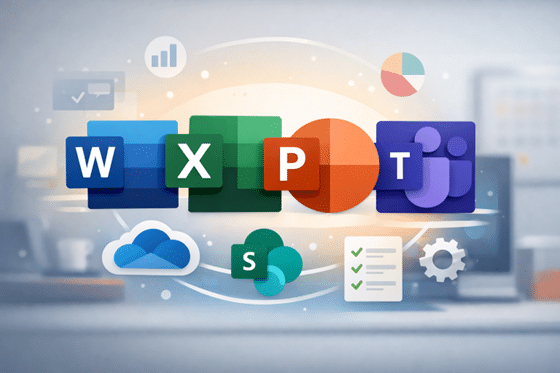
A major selling point of Microsoft 365 is the integration between its classic productivity apps: Word, Excel, PowerPoint, OneNote and Outlook. These applications share a consistent interface and are designed to work together. For example, you can embed an Excel chart in a Word document or send meeting notes from OneNote via email.
How it works and why it matters
- Word: The word-processor remains the cornerstone of business documentation. It now includes modern features such as dictation, translation, research pane and built-in templates. Word on the web supports real-time co-authoring and works on any device.
- Excel: The spreadsheet powerhouse offers tools like pivot tables, Power Query and dynamic arrays. Excel’s Ideas feature uses AI to suggest charts and trends. Data types allow you to fetch stock prices or geographic data directly into cells. Co-authoring in Excel lets teams build budgets or reports together.
- PowerPoint: Presentations benefit from Designer (automatic layouts), Presenter Coach (real-time feedback on your delivery) and live captions. Collaboration features let colleagues edit slides concurrently.
- OneNote: The digital notebook captures notes, sketches and recordings. OneNote integrates with Teams so you can add meeting notes directly to a channel.
- Outlook: The email and calendar client now includes Focused Inbox, @mentions, a built-in task list and the ability to schedule meetings across time zones. Outlook on the web and mobile mirrors the desktop experience.
Having these apps under one subscription simplifies procurement and management. Users sign in once and can move between apps without dealing with separate vendors. Deep integration reduces friction: for example, scheduling a meeting from a Word document automatically attaches the file to the Outlook invite
Tips for getting more from integrated apps
- Learn keyboard shortcuts: Knowing shortcuts across Word, Excel and Outlook speeds up everyday tasks.
- Use shared templates: Store templates in SharePoint or OneDrive so everyone uses the same branding.
- Explore add-ins: The Office Store offers add-ins like Lucidchart, Grammarly and MindMeister that extend functionality.
8. Outlook’s Focused Inbox & Advanced Scheduling

What it is
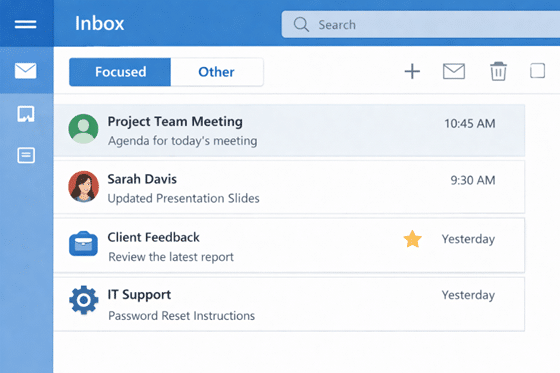
Outlook’s Focused Inbox uses machine learning to separate your most important emails from the rest. Rather than sorting by date alone, Focused Inbox creates two tabs – Focused and Other – letting you see crucial messages first. Combined with shared calendars and scheduling tools, Outlook helps you manage communication and time more effectively.
How it works and why it matters
When enabled, Focused Inbox analyses your email habits, who you interact with frequently and the content of messages. Emails from people you regularly engage with appear in the Focused tab, while newsletters and less-important mail land in Other. You can move messages between tabs to train the system. Shared calendars and scheduling assistant help you find meeting times that work for everyone. Integrated with Teams, a meeting link is added automatically.
For small businesses overwhelmed by email, Focused Inbox reduces noise and ensures critical communications are not missed. Outlook’s scheduling features make it easy to coordinate across time zones and avoid double bookings. While not as widely known as other features, enabling Focused Inbox can have a big impact on productivity.
Tips for getting more from Outlook
- Use @mentions: Mention someone in an email to highlight action items; Outlook adds the message to their To-Do list.
- Schedule send: Compose emails and schedule them to send later, ensuring messages arrive at the right time.
- Try Play My Emails: The Outlook mobile app can read your emails aloud, useful when you’re on the go.
9. Advanced Analytics & Data Features
What it is
Beyond basic spreadsheets, Microsoft 365 includes tools for data analysis and business intelligence. These features help organizations make data-driven decisions.
How it works and why it matters
- Excel Power Query & Power Pivot: Power Query allows you to connect to and transform data from a variety of sources (CSV, databases, web). Power Pivot lets you build data models and relationships between tables. Together they enable self-service BI within Excel.
- Power BI integration: Power BI is Microsoft’s cloud-based analytics platform. You can publish Excel data models to Power BI, create interactive dashboards and share them via Teams or SharePoint. Real-time dashboards help track KPIs and spot trends.
- Data types & dynamic arrays: Excel now supports rich data types (like stocks or geography) that fetch live information. Dynamic arrays allow formulas to spill results into adjacent cells automatically.
- Insights in Teams: Viva Insights (formerly MyAnalytics) provides personal productivity insights, such as time spent in meetings or focus time. Managers can view aggregated data (without exposing individual details) to identify burnout risks.
Using these tools, small businesses can go beyond simple spreadsheets and build dashboards that rival enterprise BI systems. MSPs can help clients visualize help-desk tickets, resource utilization or security metrics. Although advanced analytics might be considered an uncommon feature of Microsoft 365, it provides enormous value when harnessed.
Tips for getting more from analytics
- Start small: Use the Analyse Data feature in Excel to automatically generate charts and pivot tables.
- Publish to Power BI: Share live dashboards with stakeholders instead of emailing reports.
- Explore Viva Insights: Encourage employees to schedule focus time and limit after-hours emails.
10. Scalability & Continuous Updates
What it is
Microsoft 365 is offered as a subscription service. This model means that customers receive continuous updates to features and security improvements without purchasing new licences. Additionally, plans are scalable: you can add or remove users as your organization grows or shrinks.
How it works and why it matters
On the first Tuesday of each month, Microsoft typically releases feature updates for the consumer and small business channels. Security patches are delivered monthly (sometimes weekly) to address emerging threats. Because the software is cloud-based, updates happen behind the scenes; you rarely need to download or install patches manually. New capabilities like Copilot or Teams features are gradually rolled out so organizations can plan adoption.
Licensing is flexible. You can mix and match plans (e.g., Business Basic for frontline staff, Business Premium for managers) and scale up during busy seasons. When employees leave, licences can be reassigned. This elasticity makes Microsoft 365 cost-effective for MSPs serving multiple customers and for small businesses with fluctuating headcounts.
Another advantage is that data is backed up and redundant across multiple data centers. Disaster recovery is built in: if a server fails, another takes its place. You can also choose data residency regions to comply with regulations.
Tips for getting more from updates & scalability
- Stay informed: Join the Microsoft 365 Roadmap and Message Center to learn about upcoming changes.
- Use targeted release: Test new features with a small group before rolling them out to all users.
- Review licences regularly: Remove unused licences and adjust plans to optimise costs.
Feature Comparison Table
The table below compares the ten features described above. We highlight the primary category of each feature (collaboration, communication, storage, security, AI, management, etc.), the key unique capability it delivers and whether the capability is widely available across apps (common) or specific to one tool (uncommon). Short phrases are used in the table to maintain readability.
| Feature | Category | Unique capability | Common across apps? |
|---|---|---|---|
| Real‑Time Co‑Authoring | Collaboration | Simultaneous editing of documents with version history | Yes – Word, Excel, PowerPoint |
| Microsoft Teams | Communication | Persistent chat, video conferencing and AI meeting summaries | Mostly – integrated with other apps |
| OneDrive & Personal Vault | Storage & Security | 1 TB cloud storage per user and an extra‑secure area for sensitive files |
Shared across all Microsoft 365 subscriptions |
| Advanced Security | Security | Safe Attachments & Safe Links scanning for emails; MFA and DLP policies | Yes – security extends across services |
| AI & Copilot | AI & Automation | Generative assistance in Word, Excel, PowerPoint, Outlook and Teams |
Yes – integrated into major apps |
| SharePoint | Content Collaboration | Document libraries with metadata, versioning, external sharing & workflows |
Primarily SharePoint but powers Teams & OneDrive |
| Planner & To Do | Task Management | My Day suggestions, Kanban boards, charts and schedule views | Separate apps, integrated with Outlook & Teams |
| OneNote | Note Taking | Digital ink, multimedia notes and voice transcription | Stand‑alone but syncs across Office |
| PowerPoint Designer | Presentation | Automatic slide designs and 3‑D content suggestions | Specific to PowerPoint |
| Excel AI Features | Data Analysis | Natural language formulas, Flash Fill pattern recognition & live data types |
Specific to Excel |
Conclusion:
Microsoft Office 365 (now Microsoft 365) offers far more than the traditional Word and Excel applications. Its strength lies in the seamless integration of cloud storage, real-time collaboration, unified communications, cross-platform mobility, AI-powered assistance, enterprise-grade security and continuous innovation. These features, whether common or uncommon, empower small businesses and MSPs to work smarter, reduce costs and stay competitive.
By understanding and leveraging the top 10 features described above, organizations can transform their workflows. OneDrive ensures files are always available and secure. Real-time co-authoring lets teams collaborate effortlessly. Teams centralises communication, while AI tools like Copilot accelerate everyday tasks. Advanced security protects data, and flexible licensing keeps businesses agile. Whether you are just getting started with Microsoft 365 or looking to unlock hidden capabilities, these features provide the foundation for a modern, productive workplace.
Frequently Asked Questions about Microsoft Office 365
1. What is Microsoft 365 and how is it different from Office 2019?
Microsoft 365 is a subscription that includes the Office apps plus cloud services like OneDrive and Teams, continuous updates and AI features. Office 2019 is a one-time purchase with limited updates.
2. Is Office 365 the same as Microsoft 365?
Microsoft describes Office as now being part of Microsoft 365, which includes apps plus cloud services and security.
3. Do I need internet access to use Microsoft 365?
An internet connection is required for setup and to sync changes, but you can work offline. Files and emails will sync when you reconnect.
4. Can I use Microsoft 365 on a Mac or mobile device?
Yes. The apps are available on Windows, macOS, iOS and Android. Your files sync across all devices.
5. Are Microsoft 365 updates automatic?
Yes. As part of the subscription, Microsoft delivers feature and security updates automatically; you can choose targeted or standard release schedules.
6. What’s the difference between Business Basic and Business Standard?
Microsoft positions Business Basic as web/mobile apps plus business email and storage, while Business Standard adds desktop versions of the apps.
7. Why do MSPs push Business Premium so often?
Because Microsoft positions Business Premium as adding advanced cyber threat protection and device management versus lighter plans.
8. What is Microsoft Teams used for?
Teams is an all-in-one platform for chat, video meetings, voice calls and collaboration. It integrates with OneDrive, SharePoint and other apps.
9. Does Office 365 include Teams?
Many business plans include Teams, and Microsoft’s plan pages show options to choose plans with or without Teams depending on context/region.
10. What are the most used apps in Office 365 for small businesses?
In typical SMB deployments, core usage centers on Teams, Outlook/Exchange Online, OneDrive, SharePoint, and the Office apps.
11. How does Teams store files shared in channels?
Teams is integrated with Microsoft 365 services; Teams membership is stored in a Microsoft 365 group that also grants access to the team’s parent SharePoint site where files live.
12. Does Microsoft 365 include security features
Yes. Plans include multi-factor authentication, data loss prevention, advanced threat protection and compliance tools
13. What is Conditional Access and why do MSPs care?
Microsoft describes Conditional Access as a Zero Trust policy engine that uses signals to enforce access decisions.
14. Do I need a special license for Conditional Access?
Microsoft documents that using Conditional Access requires Microsoft Entra ID Plan One licensing.
15. What’s the point of app protection policies if we already have MFA?
MFA protects sign-in. App protection policies protect corporate data inside managed apps and can prevent copy/paste of corporate data into other apps.
16. What is Defender for Office 365 and do small businesses need it?
Microsoft describes Defender for Office 365 as protecting email and collaboration from advanced threats like phishing and BEC, beyond built-in protections.
17. What’s the difference between Defender for Office 365 Plan One and Plan Two?
Microsoft describes Plan One as advanced protection, and Plan Two as adding capabilities like investigation/hunting/response and simulation training.
18. Is OneDrive secure for business data?
Yes. Files stored in OneDrive are encrypted at rest and in transit. You can set sharing permissions, expiration dates and use multi-factor authentication to protect accounts.
19. How much storage does OneDrive provide?
Microsoft 365 Business plans typically include 1 TB of OneDrive storage per user; some enterprise plans offer unlimited storage.
20. Can OneDrive recover files after ransomware or mass deletion?
OneDrive provides version history for files and also supports “Restore your OneDrive” to undo actions across files/folders within a recent time window.
21. Can multiple people edit a document at the same time?
Absolutely. Real-time co-authoring in Word, Excel and PowerPoint shows each person’s changes instantly
22. How does Focused Inbox work?
Focused Inbox uses machine learning to place important emails in a “Focused” tab and less-important messages in “Other.” You can move messages to teach the system.
23. Is SharePoint version history a backup?
SharePoint versioning helps restore earlier versions, but Microsoft’s shared responsibility stance indicates customers remain responsible for protecting their data.
24. What is the difference between OneDrive and SharePoint?
OneDrive is your personal or company cloud storage, while SharePoint provides shared team sites and document libraries with more advanced permissions and workflows.
25. Can I integrate third-party apps with Microsoft 365?
Yes. The Microsoft 365 ecosystem includes connectors and APIs for services like Salesforce, Slack, Trello and many others
26. What is Microsoft Purview used for in Office 365?
Microsoft positions Purview as solutions to govern, protect, and manage data, including sensitivity labels, DLP, retention, and eDiscovery capabilities.
27. What is Copilot in Microsoft 365?
Copilot is an AI assistant that helps you write documents, analyze spreadsheets, create presentations and respond to emails. It uses generative AI to draft and summarize content.
28. Do I need a separate license for Copilot?
Microsoft documents that Microsoft 365 Copilot is available as an add-on plan with licensing prerequisites and minimum readiness requirements.
29. Is Microsoft 365 suitable for MSPs and small businesses?
Definitely. It offers enterprise-grade tools, flexible licensing and robust security without requiring on-premises infrastructure, making it ideal for managed service providers and growing companies.
30. What happens if I cancel my Microsoft Office 356 subscription?
You retain access to your data, but your Office apps enter read-only mode and cloud services are limited. Microsoft provides a period (usually 30 days) to retrieve data.


